
Setting up email on your iPhone or iPad is a straightforward process that can be completed in just a few steps. Whether using a personal email account or setting up an email for business purposes, following this guide will help you get your email configured quickly and efficiently on your Apple device. Here’s how to do it:
Auto-Configuration
1. Navigate to Manage Hosting > Options > Manage.
3. Choose Email Accounts.
3. Choose Options > Account Setup.
4. You will then see the Download iOS Mobile Profile option; pick it to download the necessary information to your iPhone for setting up your email account.
5. Review and install the profile on your phone; you must input your mailbox password to finish the setup.
Manual Configuration
1. Navigate to the Settings icon and choose the Mail option.
2. Head to Accounts.
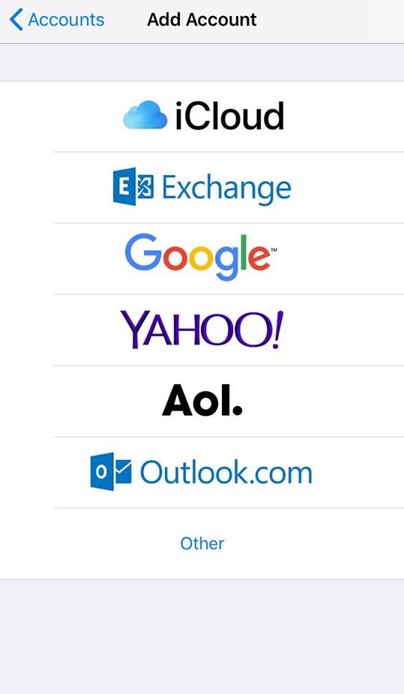
3. Select ‘Add Account’.
4. Select Other from the list.
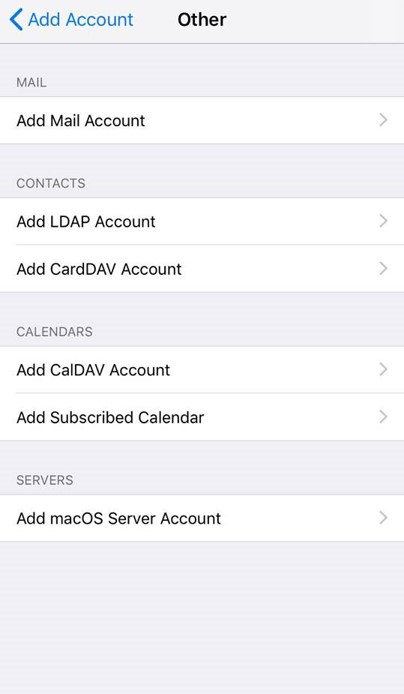
- Select Add Mail Account.
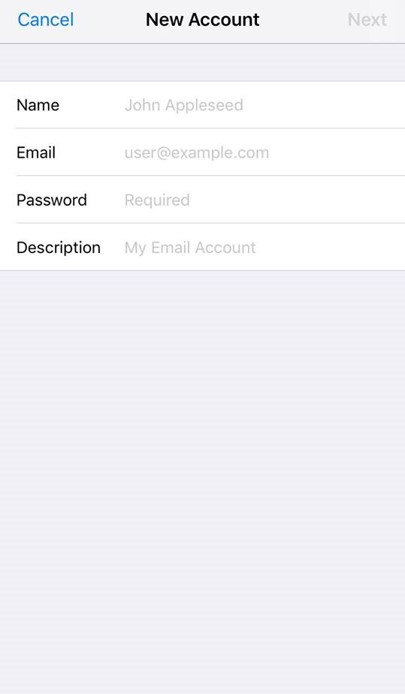
- Input the information requested:
Name: Anything
Email: example@yourdomain.com
Password: Mailbox Password
Description: Work, Business…etc
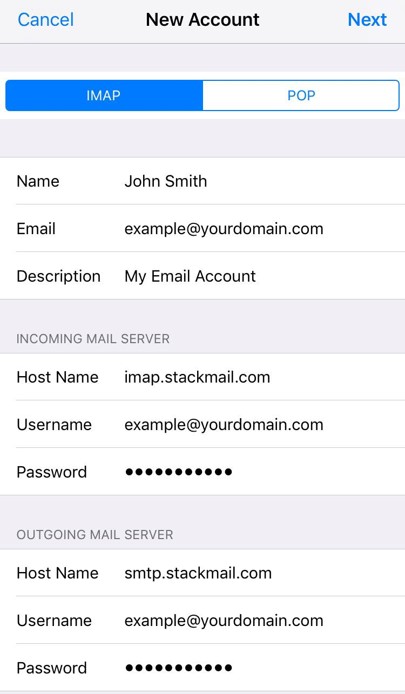
IMAP:
Incoming Mail Server
Host Name: imap.stackmail.com
Username: example@yourdomain.com
Password: Mailbox Password
Outgoing Mail Server
Host Name: smtp.stackmail.com
Username: example@yourdomain.com
Password: Mailbox Password
- Finally, select the mail account and enter the Outgoing Mail Server settings. Select Primary Server, ensure SSL is switched on and the port is set to 587.